How students can take online tests using just a test code
Your teacher has shared a test code. This post shows you how to use it to start the exam right away.
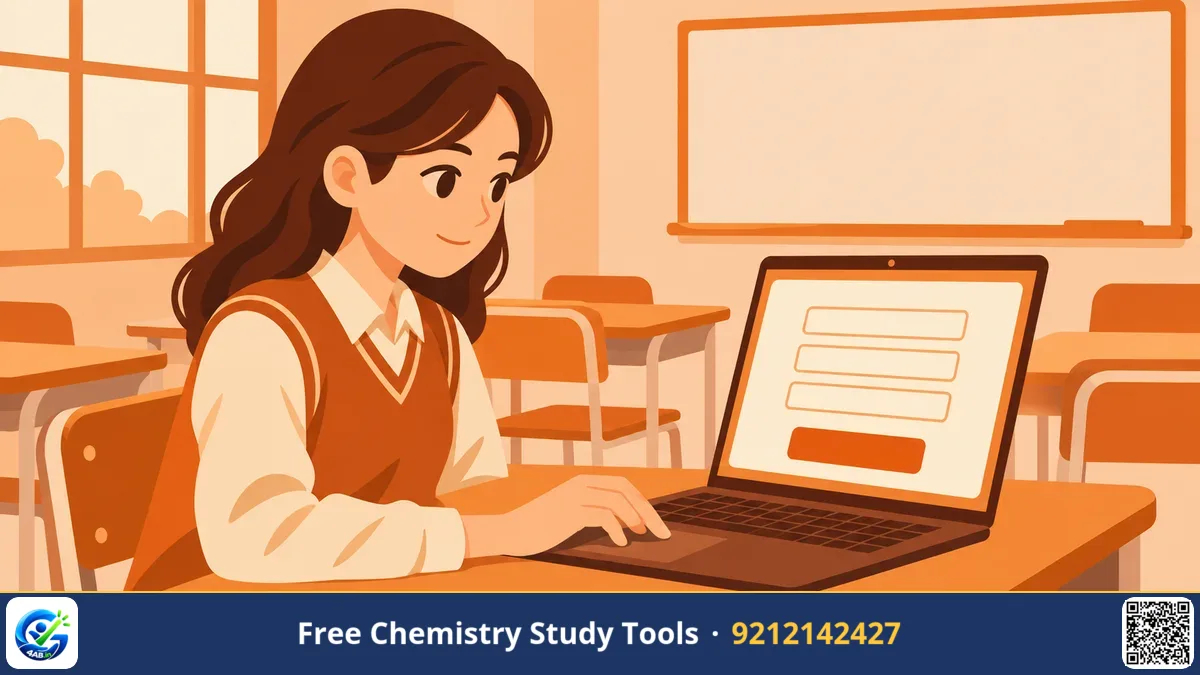
You will also learn how to use the exam screen well and how to read your result afterwards.
What a test code is and why it saves time
A test code is a short set of letters and numbers that points to one particular test. Your teacher creates the test, and the code is how the test is shared with the class. The page shows ABC123 as a sample of how a code looks. Your own code will be different.
The code works like a key. You do not search for the test, scroll through lists or wait for an invitation. You type the code and the right test opens.
This also helps teachers. Every student in the class gets the same paper, so the results can be compared fairly. It also saves class time, because nobody has to create a login before the test begins.
Before you press "Open test"
Do a little preparation first. The exam clock starts when you begin, so you do not want to fix problems after the timer is running.
- Check your device. A laptop or desktop is easier for long tests. A phone also works, but the screen is smaller and reading long questions takes more effort.
- Check your internet. A broken connection in the middle of a test is stressful. Sit where your signal is steady.
- Keep rough paper and a pen. Numerical and calculation questions need working. Do not try to do everything in your head.
- Copy the code carefully. If your teacher sent it in a message, copy it exactly. Do not add spaces at the start or the end.
- Ask your teacher if an account is needed. The page says no account is needed unless the test asks for one. Your teacher knows how the test was set up.
- Close other tabs and apps. Notifications and videos pull your attention away while the clock is running.
How to open the test, step by step
- Go to the Online Test page on 4AB. It is listed under Tools on the Great Educators page.
- Look for the "Take a test" box. It carries the line "Enter the code your teacher shared."
- Click the "Test code" field and type or paste your code.
- Press "Open test".
- Read the first screen carefully before you start answering.
The page also has the headings "My attempts" and "My tests". "My attempts" is meant for the tests you have taken. "My tests" is for tests you have created yourself. As a student with a code, you mainly need the "Take a test" box.
What the exam screen gives you
The test is built to run the way a computer-based test, often called a CBT, runs. In a CBT you read each question on screen and click your answer instead of writing on paper. The page lists these features under "Real exam clock".
| Feature | What it means for you |
|---|---|
| Countdown | You can see how much time is left. Check it now and then, not after every question. |
| Auto-submit | When time ends, the test is submitted for you. Do not plan to finish "just after" the clock. |
| Sections | The paper can be divided into parts. Know which part you are in. |
| Palette | A panel that lets you move between questions. Use it to jump to a question you skipped. |
| Mark for review | Flags a question you want to come back to before you submit. |
This matters if you plan to appear for computer-based exams later. Practising on a screen like this now means the format will not surprise you on the day.
Question types you may meet
The page says the test handles all of the following question types. Your teacher decides which ones appear in your paper.
- MCQ: a multiple-choice question with one correct option.
- Multi-select: more than one option can be correct. Read every option before you click.
- Numerical with tolerance: you type a number. Tolerance means a small allowed gap around the correct value, so a slightly different rounding may still be accepted. Even so, follow any rounding instruction in the question.
- Assertion–reason: two statements are given. You decide whether each is true and whether the second explains the first.
- Match: you pair items from one list with items from another.
- Typed answers: for subjective questions, you write your answer in words. Keep it short and clear, and write it before the clock runs low.
A simple plan for attempting the paper
Worked plan for a 30-question test. This is a study method, not a rule from the tool.
- First round: Go through the paper in order. Answer the questions you are sure about. If a question looks long, mark it for review and move on.
- Second round: Open the palette and go to the marked questions. Now attempt the ones that need calculation.
- Last few minutes: Check that no question is left blank by mistake. Then submit.
The reason is simple. Early marks come from easy questions. A hard question should not eat the time that easy ones need.
Keep an eye on the countdown during the second round. Because of auto-submit, you cannot count on extra minutes once the clock reaches zero.
After you submit: use the analysis
Many students look at the score and close the page. That wastes the most useful part. The page says you get an instant analysis. It lists:
- your score and accuracy,
- rank and percentile,
- topic-wise and difficulty-wise bars,
- time spent per question,
- a full review with explanations.
Percentile tells you what share of test-takers you scored above. Rank tells you your position among them. Both depend on who else took the test, so treat them as a guide to your position in this group, not as a prediction of any future exam.
Start with the topic-wise bars. A weak topic is a clear study task. Then read the explanations for the questions you got wrong. Finally, look at the time per question. If you spent far longer on a few questions, your next goal is time control, not more reading.
Write down two or three topics from the bars in your notebook. Revise them, then ask your teacher for the next test and compare.
For teachers: getting your class into the test
If you set the test, the "Create a test" and "+ New test" options are where you begin. Once the test is ready, you can share it in several ways: a link, a code, a QR code and WhatsApp. A QR code is a square picture that a phone camera can scan to open the page.
For a classroom, a short routine works well:
- Write the code on the board or share it in your class group just before the test starts.
- Ask students to open the Online Test page and wait at the "Take a test" box.
- Tell everyone to press "Open test" together, so the clocks start at about the same time.
- After the test, check the results and the question analysis. You can download them as a CSV file. A CSV is a plain table file that opens in spreadsheet software.
The question analysis shows which questions many students got wrong. That is a good guide to what you should reteach.
Key takeaways
- Type the teacher's code in the "Test code" box and press "Open test". No account is needed unless the test asks for one.
- Prepare your device, internet and rough paper before you start, because the countdown begins once the test opens.
- Use the palette and "mark for review" so hard questions do not eat your time.
- After submitting, read the topic-wise bars and explanations. That is where the learning happens.
- Teachers can share a link, code, QR or WhatsApp and download results as CSV.
Frequently asked questions
Do I need to register to take a test with a code?
The page says no account is needed unless the test asks for one. If your test asks, your teacher can tell you what to do.
What if I type the code and the test does not open?
Check for extra spaces and wrong letters first. If it still does not open, ask your teacher to confirm the code and send it again.
What happens when the time ends?
The test has auto-submit, so it is submitted for you when the countdown ends. Plan your time so you finish before that.
Can I see my mistakes after the test?
Yes. The page lists a full review with explanations, along with your score, accuracy and time per question.
Can my teacher see my result?
The page says results and question analysis go to the person who set the test, with a CSV download. Ask your teacher how they will use the results in your class.
What to do next. Try it yourself on the page below.
Great Educators — 4AB →